
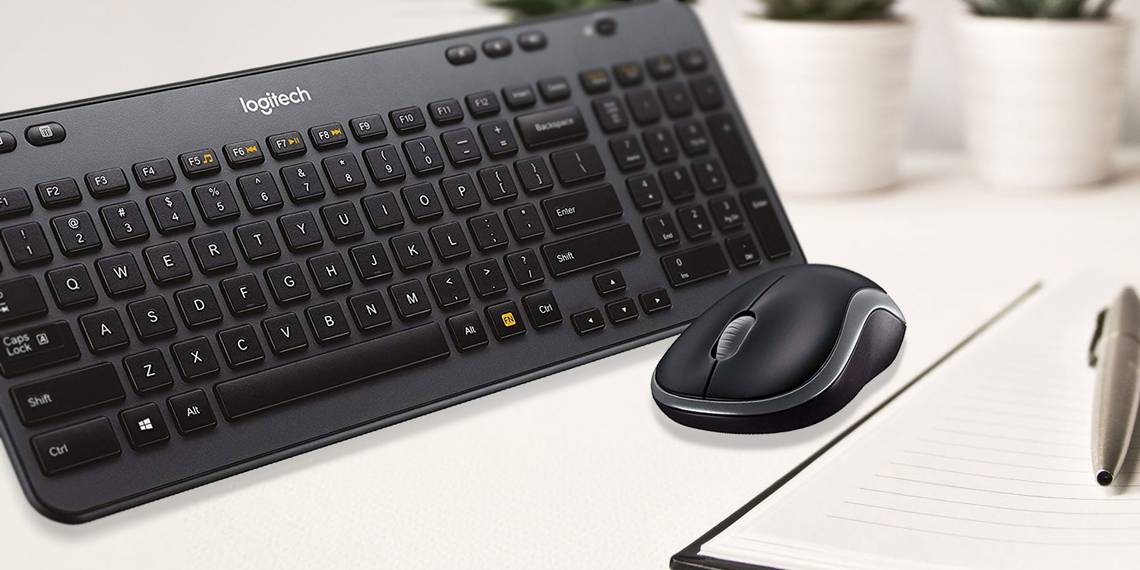
Pretty much every computer in existence has a keyboard and mouse connected to it. And while it's standard to have one of each, there are situations where you might want to connect two keyboards, or two mice, to one computer.
Maybe you'd like to control a media PC from across the room with a secondary wireless mouse, or perhaps you want to keep one hand on an extra keyboard for instant access to shortcuts.
Whatever your reason, here are a few ways you can use multiple keyboards and mice on one Windows computer.
The Basic Way: Connect Both Keyboards or Mice Directly
Did you know that Windows can detect and use multiple keyboards and mice at the same time? Simply plug in your second mouse or keyboard via a USB port, or connect with Bluetooth. After giving Windows a moment to add the necessary drivers, you can type using either keyboard, or control the cursor with both mice.
On Windows 10, visit Settings > Devices > Bluetooth & other devices to see everything you currently have connected. You can tweak how your mice perform under the Mouse section, but these settings will apply to all connected mice. As a result, depending on different your mice are, one might feel too sensitive or not sensitive enough.

If you mirror your main PC to a TV and want to control it with a wireless mouse on your couch, this is a great solution. Both devices perform the same function on your computer, so you can switch between them at will and Windows won't mind at all.
Use Logitech's Unifying Receiver
Modern Logitech mice and keyboards come with a Unifying Receiver. This little dongle plugs into a USB port and can connect up to six Logitech devices to your system. Thus, if you want to use multiple keyboards or mice and they're all from Logitech, you can save a few USB ports.
To take advantage of this, make sure you have the Logitech Unifying Software on your system. After installing it, follow the steps to add each of your devices. If you already have a device paired, open the app and click Advanced, then Pair a New Device. Follow the prompts to switch the device on or off, and it will pair with your existing receiver.

Control Two Cursors With Two Mice Using a Third-Party App
The built-in Windows solution lets you use two keyboards or two mice on your computer, but they will always perform the same functions. What if you want two separate cursors on the screen that control independently of each other?
For that, you'll need to turn to third-party software. In the past, TeamPlayer was a trusted app to accomplish this goal. However, as of this writing, TeamPlayer is not available from any official source.
You'll still find old downloads of it floating around the web, but we don't recommend using these as they are outdated. Plus, TeamPlayer wasn't free after its short trial. Instead, try the best TeamPlayer alternative available now: MouseMux.
Using MouseMux
MouseMux is a straightforward app that allows you to switch between multiple "user profiles," each of which get their own mouse (and optionally, keyboard). Simply connect the mice and keyboards you want to use.
When you move each mouse to the first time, it will be assigned to a user in the list. The silhouette turns dark when a new user is activated, and you'll see the keyboard/mouse icon turn orange when they're currently in use.
MouseMux offers three modes of control. Native mode is the same as Windows' default behavior, where all mice and keyboards control the same input.
More interestingly, Switched input gives each user their own colored cursor, and allows each person to drag windows and type inside apps independently from the other user. There are some limitations, such as not being able to click inside different windows at the same time. But overall, it's a neat way to let two or more people use a computer at once.

Finally, Multiplex mode removes all the limitations of Switched input. In this mode, multiple users can work in different apps at the same time with few exceptions. Once you click on a program, your profile becomes the "owner" of that app. The developers note that this mode is experimental, so you may experience issues. Use the shortcut Ctrl + Alt + F12 to kill the program if you run into trouble.
The app includes a manual that explains all the options in-depth, which is worth looking at to understand the intricacies of how it handles multiple inputs. Overall, MouseMux is a handy tool for using multiple mice at the same time, and it's free for personal use while in beta. There aren't any other tools like it available now that we'd recommend.
Download: MouseMux (Free)
Use TeamViewer From Another PC for a Second Mouse

Another way to effectively use two mice or keyboards at once is creating your own solution with TeamViewer (or another remote control tool). TeamViewer is an easy tool for connecting to and controlling a remote computer. Since you're using a second set of inputs on the same machine, it can also effectively add a second mouse to your computer in a pinch.
Download and install TeamViewer on both your computer and another machine that will serve as the extra mouse. Once set up, connect the second machine to the host using the ID number and passcode from the main computer.
After this, you'll have two cursors: one from your computer, and one that the remote computer can use to control yours. Make sure to visit Extras > Options > Remote control and check the box to Show your partner's cursor on both machines, or you can't see where the other one is!

While this won't let you perform independent functions like MouseMux, it works for letting two people control cursors on the same screen. For example, this is useful for reviewing documents, as both parties can select objects to show the other. But since the remote machine moves the host's mouse with their cursor, it's not a true dual-cursor setup.
Depending on your connection speed, the remote mouse might suffer from some lag. But if you don't need exact precision from the second mouse, you can try this method to attach an extra mouse to your laptop and use it as a secondary pointer on your desktop. It's not the most elegant, but it works.
Download: TeamViewer (Free)
Add a Second Mouse and Keyboard to a Virtual Machine

Like the TeamViewer method, adding a virtual machine to your computer is a workaround way to use a second mouse independent of your main cursor. If nothing else above worked for you, this might be a viable solution.
First, you'll need to set up a virtual machine on your computer. The easiest way to do this for free is using VirtualBox; follow our complete VirtualBox setup guide to learn how it works.
Once you have everything configured, you'll need to add a filter to the virtual machine so that only specific devices connect to it. Click your VM from the list and choose Settings, then select the USB tab. On the right side, click the USB plug icon with the green plus symbol on it and select the keyboard or mouse you want to use in your VM.

Repeat this if you want to add more devices, then hit OK. Now when you start up your VM, the USB devices you've selected will only work inside the VM. If you have issues, disable the Mouse Integration option from the Input menu and it should work as normal.
This way, you can use one mouse and keyboard to work in the VM, while the other one will still control your main system. It's not a perfect solution—you'll have to install apps again in the VM, worry about keeping a separate OS updated, and need a powerful enough computer to run a VM.
But in some use cases, it could be a perfect way to connect multiple mice and keyboards to one PC.
Download: VirtualBox (Free)
Don't Forget About Collaboration Software
Depending on what you want to use two cursors for, you might not even need the above solutions to connect a second mouse. For collaborating on a document with someone else, you can invite them to a Google Doc, use OneNote to brainstorm together, or take advantage of similar team collaboration tools.
With apps like these, everyone uses their own PC, but works on the same document together. These let you benefit from several users working on the same screen at once without any complicated setup or extra software.
Two Mice, One Computer: No problem
Most people probably won't need to use two mice and two keyboards at the same time. Windows' default way of allowing two devices to control the same input works great for home media setups. The other options we've looked at give you a few ways to have two separate mouse cursors and keyboard inputs on one PC.
For those who want to get advanced, there are even more ways around this, if you involve mobile devices.