
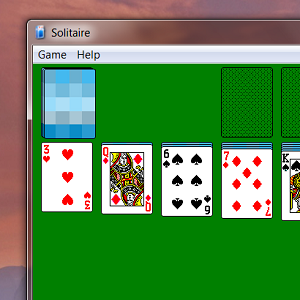
Ditch the shiny and slow. Get old-fashioned but familiar Windows XP games working on your Windows 7 computer. They're ugly, but they work the way you're wired.
It's probably surprising to most gamers, who stopped paying attention to the default Windows games around the time Windows 98 came out, but many people still play the default collection of card games at work, instead of working. Solitaire, Minesweeper, Hearts and Spider Solitaire remain a favorite of many office workers.
As a quick Google search reveals though, many of these people aren't happy with the Windows Vista/7 versions of Solitaire and other classics. The cards are hard to see, some rules have changed and everything just feels slower. So if you want your classic XP games back then don't worry, it's possible. Here's how.
Step 1: Find A Windows XP Computer
That's right, you need access to a computer running Windows XP before you can do anything. There's no way around this - I couldn't find a safe download for the files, and I can't provide them for you because of copyright complications.
It's OK though, because Windows XP is still very much out there. Check your closet for an old Windows XP computer, or even a hard drive from such a computer. See if your friends, family or co-workers are still using XP. Heck, you can even grab the files from a VirtualBox or other virtual machine version of XP, if you have one.
Step 2: Grab The Relevant Files
Got your hand on a Windows XP computer? Good. Open the Windows Explorer, then go to
C:\Windows\System32. You'll see a warning when you do:

Don't panic; you won't break anything. Get into the folder and you'll see the unholy mess that is Windows internal workings:

You're going to need to scroll through here and grab a few files. I highly recommend you "copy" them to an empty folder on your desktop:
- cards.dll
- freecell.exe
- mshearts.exe
- sol.exe
- spider.chm
- spider.exe
- spider.hlp
- winmine.exe
You're going to need
cards.dllfor most of these games, but other than that you can just grab the files related to the games you want. Get them into their own folder and you'll have something that looks like this:

Wondering where Pinball is? It's in it's own folder:
C:\Program Files\Windows NT\Pinball.

Microsoft removed this game from Windows, which angers more than a few people (my amazing wife included.) Right this injustice - copy this entire folder and add it to the collection you just amassed.
Step 3: Copy To Your New Computer
Grab the folder you just created, and get it to your new computer. You can do this with a thumb drive, Dropbox, or however you like; it doesn't matter.
Once you've got the folder on your new computer, put it wherever you like. You can open the games directly from your folder, or create shortcuts to them in your start menu.

Your games will all run flawlessly in Windows 7, and will work exactly the way you remember. Enjoy!
Conclusion
This post helped me to figure out how to get the classic XP games, so check it out if you run into any problems. Or if you want, join me in the comments below and I'll do what I can to answer your questions.
Got your useless games working, but want more useless fun? Get Nyan Cat progress bars, because they're awesome.