How to Start Google Chrome in Incognito Mode by Default

Feb. 9th, 2009 By Saikat Basu

I remember a wall poster that said – “Even for expert users things should be simple.”

The line came to my mind when I came across the nifty ‘Incognito mode’ in Google Chrome. The incognito mode gives us a way to stealthily and sneakily wade through the web. For those who have come in late, this is what Google says about the incognito mode…

Webpage’s that you open and files downloaded while you are incognito won’t be logged in your browsing and download histories; all new cookies are deleted after you close the incognito window. You can browse normally and in incognito mode at the same time by using separate windows.

In spite of its cool quotient, what is missing for a lot of us is a way to launch the browser in incognito mode by default. The solution is not too far to seek as Google provides a command line switch which we can use.

So, how to start Google Chrome in Incognito Mode

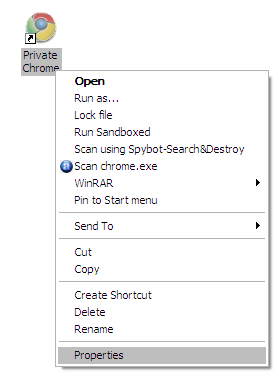
  1. Place a Google Chrome shortcut on the desktop (or any other desired location).
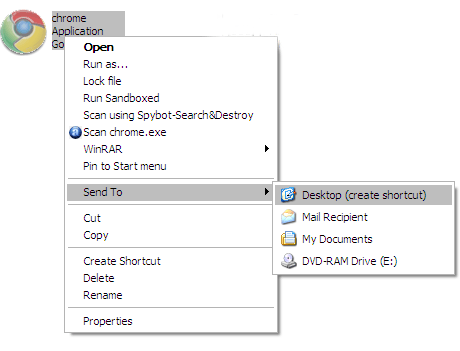
    start google chrome in incognito mode

  2. Rename the shortcut to any convenient name like – Private Chrome.
  3. Right click on the shortcut and select ‘Properties’.
    start chrome in privacy mode
  4. On the ‘Target’ field add an –incognito to the end of program path. (Note: Make sure there is a space between the last apostrophe and the dash)
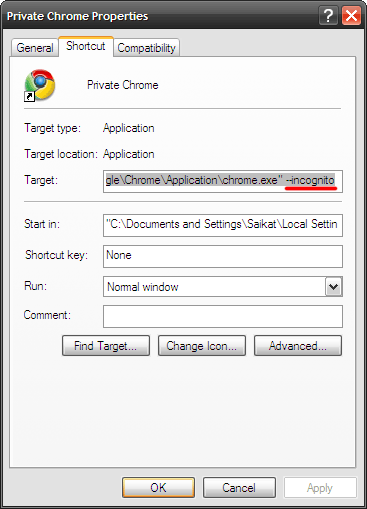
  5. Your incognito browser is now ready for launch. If you select ‘New Window’ from settings, you will get a normal non-incognito chrome window.

The incognito mode has its uses in public browsing where we don’t want to leave behind a trace of our activities. Among its other off hand uses is that it allows us to open different account sessions for the same website. For instance I can open two different talk sessions of Gmail Chat, one through the normal browser window and the other through the incognito one. This possibility extends to other web services too where one has two different accounts.

Did you find this simple tip useful? Any special reason you would want to launch Google Chrome in Incognito Mode by defualt? Let us know in the comments.

(By) Saikat is a techno-adventurer in a writer's garb. When he is not scouring the net for tech news, you can catch him on his personal blog ruminating about the positves in our world.

Enjoyed the article? Subscribe to MakeUseOf to get daily updates on new cool websites and programs in your email for free. You'll also get free printable cheat sheets to your favorite programs

Your Email:

Add MakeUseOf to:


16 Comments Add Comment
2009-02-09 12:29:30
hank

Surely Google doesn’t say “webpage’s” when they mean the plural “webpages.”

2009-02-09 13:01:13
Saikat

Sorry Hank…that’s a typo on my part probably through an auto-correct that I missed.

2009-02-09 18:35:53
waveydavie

Doesn’t work for me. It comes back “Oops! This link appears broken. DNS error – cannot find server.” with “Try searching on Google: incognito p89d” with the URL “http://xn--incognito-p89d/”
I can’t what I did wrong, any ideas?

2009-02-10 12:26:57
Saikat

Didn’t quite understand your error. Did you get the Incognito mode through the created shortcut? Your error suggests that you probably put the parameter in the address tab rather than the ‘Target’ field in the properties box.Just a guess though…

2009-02-10 15:52:11
waveydavie

Hi Saikat
No, I got the plain old common or garden variety. It is exactly as you have it above except I renamed it differently and added a comment.

(Comments wont nest below this level)
2009-02-09 21:46:09

Cool I have use this feature in Chrome, I prefer surf the web the regular way! Nothing to hide

2009-02-10 17:03:57
waveydavie

Tried it again, same result. Here’s a screenshot: http://farm4.static.flickr.com/3044/3269704885_85204097b4_o.jpg

2009-02-11 09:38:46
Saikat

Make sure there is a space between the last apostrophe and the double (–)dash. Even then if there is a mistake with the gap, the browser won’t start but an alert box will pop up saying that you have typed an invalid path. I think you are typing a single dash (hyphen) instead of twice (–)

2009-02-11 10:24:13
waveydavie

Double!? It disnae say double anywhere! :-)
Well anyway, that fixed it.
Thanks Saikat

(Comments wont nest below this level)
2009-03-16 12:02:58

Thanks for all the screen shots. A very useful article indeed.

2009-08-04 04:24:28
Gaga

It worked like magic. without any probs.

2009-08-20 16:54:45
gondala flood

errrm, massive falps!…….Yay :) arf!

2009-09-24 04:22:52
another shortcut

For those who like using keyboard shortcuts, you can use Windows Key + r key to “Run” an application. When the Run window dialog box pops up enter “chrome –incognito” (without quotes).

This option is stored there as a recent application so it will be available next time. Some of my favorite shortcuts are “cmd” “notepad” and “calc”. Enjoy!

2009-10-24 21:15:00
wakkyg

it worked for me do not use a double dash “–”

2009-10-27 16:34:33
la-li-lu-le-lo

it worked for me and i used a double dash “–”

2009-11-20 08:05:18
Ernie
Subscribed to comments via email

hmm i still haven’t managed to get this to work with Windows 7, worked with Vista.. neither single or double dash with a space after chrome and in the target field!

Reply

You may use <a href="" title=""> <abbr title=""> <acronym title=""> <b> <blockquote cite=""> <cite> <code> <del datetime=""> <em> <i> <q cite=""> <strike> <strong> in your comment.