How To Prevent A USB Drive From Running Anything Automatically In Windows
USB flash drives are our personal data carriers, but the way we use it to exchange files also makes them open to viruses.
The Achilles heel which viruses exploit is the autorun.inf file. Autorun.inf file is a simple instruction file present in removable media like CDs, DVDs and USB drives. This file contains a series of commands that triggers the operating system to start an executable, tells it which icon to use, and which additional actions to make available. A basic autorun.inf file looks like this –
[autorun]
open=autorun.exe
icon=autorun.ico
Special Note: Autoplay is the Windows action which asks you to specify the application to use to open a particular file. The autoplay dialog box asks you to select from the options when you insert a media. Autorun on the other hand, is the Windows action which automatically launches applications depending on the commands given in the autorun.inf file when we double click the removable drive icon.
The keyword is automatic. We have to find ways to short circuit the automatic execution of programs (good or bad), so that a hidden malware does not penetrate our system. The idea then is to change the way Windows handles the autorun.inf file. The methods expressed here are majorly for Windows XP.
Use the SHIFT key
Suppress autorun by pressing the SHIFT key when inserting a USB drive. Then, right click on the icon in Explorer and select Explore to access the contents of the drive. This is a one-time action and you have to keep that in mind every time you insert an USB drive. And you have to be ever mindful of never double-clicking your USB drive icon in Explorer.
Go to the Group Policy Editor

Group Policy Editor is used to define user and computer configurations for groups of users and computers.
- Open GPEditor via Start – Run. Enter gpedit.msc in the Run box.
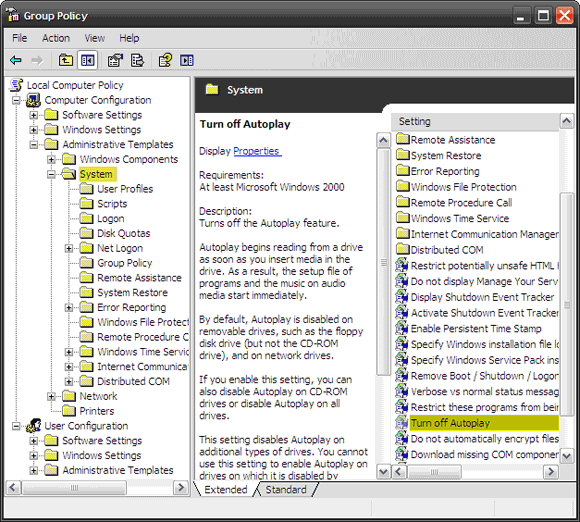
- Navigate to Computer Configuration – Administrative Templates – System.
- Highlight System on the left hand pane. On the right hand pane, go down to the entry – Turn off Autoplay and double click on it.
- Select the Enabled radio button, then for the Turn off Autoplay on dropdown, select All drives.
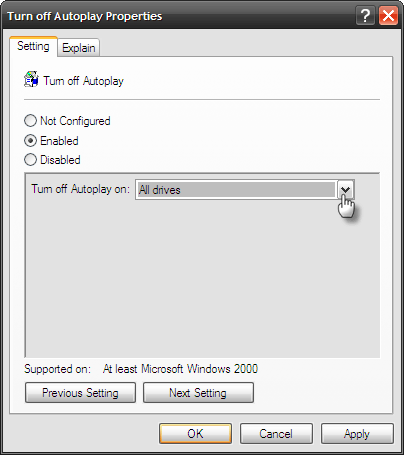
This will disable the autorun feature and let you explore the drive contents for all drives instead of directly opening it.
Hack the registry

We can also disable the autorun feature by making a change in the registry. Be forewarned that if you are not at ease with the registry, it is advisable to skip this step.
- Launch the Registry Editor by typing regedit in the Run box (Start -> Run)
- On the left hand pane, keep expanding the entries by clicking on the + sign. Search for this entry – HKEY_CURRENT_USERSoftwareMicrosoftWindowsCurrentVersionPoliciesExplorer
- For this registry entry, go to the right panel and double click the NoDriveTypeAutoRun registry key.
- Change the Value data to FF for Hexadecimal or 255 for Decimal value.
- Click OK to close the registry editor and restart the computer.
Fall back on software
If you are the type who hates going into the guts of the operating system, there are of course handy pieces of software available. Here are two examples of such applications.

This 7KB USB anti-virus tool works by detecting the removable drive and renaming the autorun.inf file to autorun.inf_current date_time thus preventing its running by the system. The program loads in the system tray and with just one click, you can turn Autorun on or off. Another option informs the user about all actions on autorun.inf files.
The program works from the system tray and is compatible with Windows XP, Windows 2000, Windows 98 and Windows 95.

TweakUI, Microsoft’s Power toy for Windows XP gives a user access to system settings that are below the visible interface of the OS.
To disable autoplay using TweakUI, go to the My Computer – Autoplay – Drives setting. Deselect the drive you wish to disable the autoplay for. Also, go to My Computer – AutoPlay – Types. Uncheck Enable Autoplay for removable drives. Click OK and you are done.
The 126KB download is compatible with Windows XP and Windows Server 2003.
These methods will prevent the automatic jumpstart of a USB drive. But if a malware sneaks through, then the value of a good, updated anti-virus and anti-malware as the first line of defense cannot be exaggerated enough.
Do you let a USB drive run automatically or do you control it with a blocking action? Which is your favored method? Let us know.
While we are learning more about USB drives, also take a look some of our popular posts about the device.
Image credit: Nedko
(By) Saikat is a techno-adventurer in a writer's garb. When he is not scouring the net for tech news, you can catch him on his personal blog ruminating about the positves in our world.


Just an idea: would creating your OWN autorun.inf file ahead of time, and setting it to hidden/system/read-only work?
XP and Vista will handle it differently. Autoplay will follow if autorun.inf is not detected. XP+SP2 brings up the Autoplay dialog box with options to handle the files.In Vista, autorun comes under autoplay’s control as a safety feature.
That would only work if you did it for each usb drive, this works for all usb sticks put in.
I use iKill (from arpantech) for detecting and deleting autorun files from removable media. I will also try USB 1.3 now, and keep the lighter one.
I am still not sure if the other methods (ie Tweak UI, registry hack, group policy editor) suppress the auotrun “file” or just stop the Windows autorun “dialogue box” from popping up; as I have already done that registry hack and found that now the autorun dialog box doesn’t come up (I dont know if the hack has any effect on autorun files)
And also, I think the “exploring instead of opening” method doesn’t work and autorun file initiates on both “exploring” and “opening”.
Know what I really want, that I was hoping this article was about? Every single time I plug in my iPhone, which has pictures on it, a stupid dialog comes up asking me how I want to handle the pictures. I don’t. That’s my wallpaper and other things that I just want to leave on the phone. There is no option for “Don’t launch anything, and never ask me again.”
Maybe a good topic for a future article. I’d kill to know how to do it.
ShakespeareGeek, have a look at Autoplay Repair. I don’t know of a homepage for it, but here’s a download link:
http://www.snapfiles.com/get/AutoplayRepair.html
This might be what you’re looking for.
Make an “autorun.inf” FOLDER on the drive, set it to hidden. No more autorun.inf viruses possible.
thanks jon
that’s what i was looking for… works great!
Jon’s tip is great, simple and very smart. Also if you had a machine with linux you can insert your usb drive, see this kind of files and delete them easily as a manual antivirus. So seek and destroy!
wow, windows is just so simple, safe and user-friendly!
/sarcasm
I CANNOT BELIEVE YOUR ASKING US TO DOWNLOAD A FILE FROM RUSSIA !!??!!! ???
There is a small free app that does Jon’s “autorun.inf FOLDER on the drive” trick for ALL Flash Drive plugged in to the PC.
Ninja Pendisk!
http://nunobrito.eu/ninja/
As for hiding the “autorun.inf” FOLDER, create a .txt file containing this line:
attrib +s +h %1
Rename .txt file to “hide.bat”
then simply drag any files you want hiding onto it.
This will add the system attribute so they will be invisible. (unless you turn off “Hide protected operating system files” in Folder options)
If a PC has viruses, the “autorun.inf” FOLDER will become visible.(handy)
creating an autorun file yourself won’t work. virii will delete it, even if it’s read only.
the best way to stop virii from installing their own autorun.Inf file is to use the dos command line and do this:
mkdir autorun.inf (this creates an autorun folder)
cd autorun.inf (opens the folder)
mkdir .\con\ (this creates an undeletable folder inside the autorun folder)
do this on any USB device and it’s impossible for virii to create evil autorun files on that device.
enjoy
david
http://www.davidsmeaton.com
Thanks for these important informations. I think I’ll use the “autorun.inf” folder method. Now I dont have to worry about getting infected through flash drives anymore.
Try this one:
Windows Registry Editor Version 5.00
;disables autoplay context menu commands in Windows Explorer
[HKEY_LOCAL_MACHINE\SOFTWARE\Microsoft\Windows NT\CurrentVersion\IniFileMapping\Autorun.inf]
@=”@SYS:DoesNotExist”
[HKEY_CURRENT_USER\Software\Microsoft\Windows\CurrentVersion\Policies\Explorer]
“NoDriveTypeAutoRun”=dword:000000ff
[HKEY_USERS\.DEFAULT\Software\Microsoft\Windows\CurrentVersion\Policies\Explorer]
“NoDriveTypeAutoRun”=dword:000000ff
a gud way to avoid this is to disable autorun across all devices, DVD,CD drives and USB devices..
jus type the following in Notepad
REGEDIT4
[HKEY_LOCAL_MACHINE\SOFTWARE\Microsoft\Windows NT\CurrentVersion\IniFileMapping\Autorun.inf]
@=”@SYS:DoesNotExist”
den save d notepad file as “NoAutoRun.reg”
right click saved file and click MERGE. Click YES and presto alll autorun is disabled
If you are the type who hates going into the guts of the operating system, there are of course handy pieces of software available
I A l s o H a v e A S o l u t i o n O f M y K i n d . I t R e s t r i c t s C r e a t i o n O f A u t o r u n . i n f F i l e.
http://6109.kabin.com.np/prevention-from-auturun-virus-is-currupting-autoruninf/
Kinda works pretty well .But I need help into formatting a flash drive which come in a RAW format.
Ok what if I want students to be able to use USB drives but I don’t want anything to be run from them? I’m particularly interested in preventing the use of BATCH files.
As the teachers use many applications I’d prefer not to use the GPO that lists all applications that can be run.
Surely there is a way to allow the use of a USB but not allow anything to run from it?
I should clarify I mean to stop anything from running period. Not just autorun. I dont want students to be able to make batch files at home and then run them from their USB sticks. However I am not allowed to stop the use of USB drives by students as storage.
I cant find an solution for this.
(Comments wont nest below this level)If you do the following startup and logon batch files wont run for that user anymore
Editor’s note: This will disable the command for all users including the local administrator. If you want to disable this for specific users only (and for XP Home users) make the change in the registry. Login to the account you want to change and create the following registry entries:
HKEY_CURRENT_USER\Software\Policies\Microsoft\Windows\System\
DisableCMD dword 0×00000001 to disable command prompt and batch files
or
DisableCMD dword 0×00000002 to disable command prompt but not batch files