
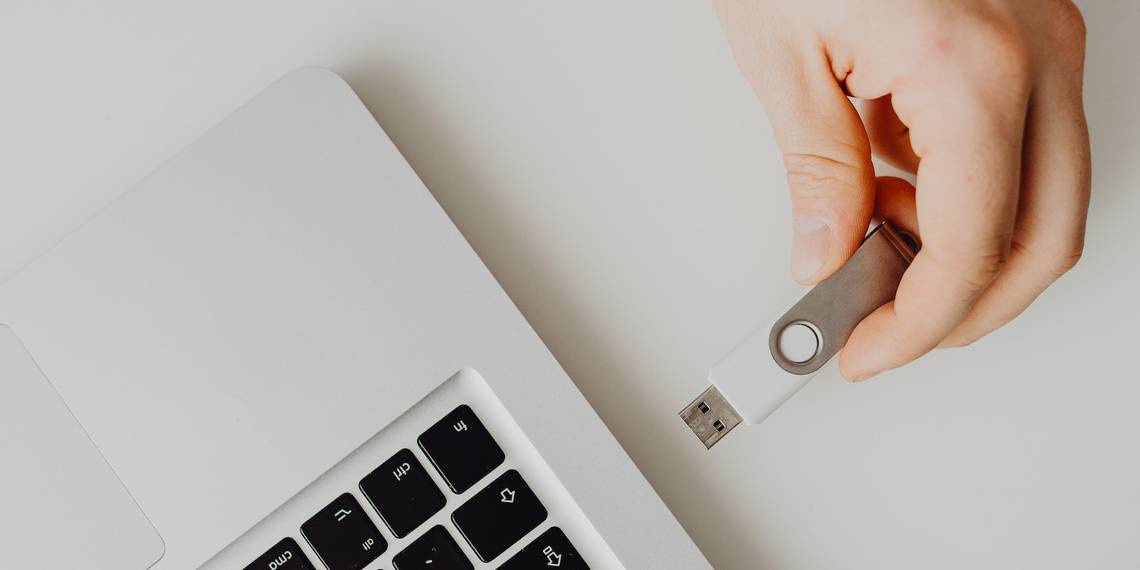
You can invest in an encrypted flash drive to secure your data. Alternatively, you can use free apps and achieve a similar level of protection.
In this article, we'll show you how to password protect a USB drive—and how you can encrypt files and folders individually.
1. Rohos Mini Drive: Create an Encrypted Partition
Many tools can encrypt and password-protect your data. Most, however, require administrator rights to run on any given computer. The Rohos Mini Drive, though, works whether you possess admin rights on the target computer or not. It works with Windows 10 and Windows 11, as well as macOS.
The free edition can create a hidden, encrypted, and password-protected partition of up to 8GB on your USB flash drive. The tool uses automatic on-the-fly encryption with AES 256-bit key length.
Thanks to the portable Rohos Disk Browser, which you install directly to your flash drive, you won't need encryption drivers on the local system. Subsequently, you can access the protected data anywhere.

Click Encrypt USB drive from the Rohos Mini Drive start screen, select the drive, specify a new password, and click Create disk. This will create a password-protected and encrypted partition on your external drive. Alternatively, you can encrypt only a specific folder on your USB drive, which will create an encrypted container.

You can open the protected partition or container by clicking the Rohos Mini.exe icon from the root folder of your USB thumb drive. After entering the password, the Rohos disk will mount as a separate drive, and you can access it via File Explorer.
To close your Rohos partition, right-click the Rohos icon in the Windows Taskbar notification area and select Disconnect.
Download: Rohos Mini Drive for Windows or macOS (Free)
If you run into the "Disk Is Write Protected" error while trying to encrypt your USB drive, it could be as simple as flipping a switch on the drive itself, or it could be more difficult to fix. Our troubleshooting guide covers all your options.
2. VeraCrypt: Encrypt Your Entire Flash Drive
VeraCrypt is the successor of TrueCrypt. It comes as a portable app that runs directly from your flash drive. Note, though, that VeraCrypt does require administrator rights to operate. It uses on-the-fly AES 256-bit encryption. The free version is limited to drive sizes of 2GB.
VeraCrypt features on-the-fly encryption using multiple different encryption algorithms, including 256-bit AES, Serpent, and TwoFish, as well as combinations of these. Like the Rohos Mini Drive, it can create a virtual encrypted disk that mounts like a real disk. But you can also encrypt entire partitions or storage devices.

Download VeryCrypt Portable and install it on your USB drive. When you launch the portable app, it will show you all available drive letters. Choose one and click Create Volume.

This will launch the VeraCrypt Volume Creation Wizard. To encrypt your entire USB flash drive, select Encrypt a non-system partition/drive and click Next.
In the next step, you can pick from a Standard or a Hidden VeraCrypt volume. Using a hidden volume reduces the risk that someone forces you to reveal your password. Note that you'll have to format the entire USB drive if you want to create a Hidden VeraCrypt volume.
We'll proceed with the Standard VeraCrypt volume. In the next window, click Select Device, select your removable disk, confirm with OK, and click Next.
To encrypt the entire USB drive, select Encrypt partition in place and click Next. VeryCrypt will warn that you should have a backup of the data, in case something goes wrong during encryption.
Now select the Encryption and Hash Algorithm; you can go with the default settings. Then, you'll get to set your Volume Password. In the next step, your random mouse movements will determine the cryptographic strength of the encryption.
Now, choose your Wipe Mode; the more wipes, the safer. In the final window, click Encrypt to start the encryption.
Download: VeraCrypt Portable for Windows (Free)
Note: An alternative to VeraCrypt Portable is Toucan, a portable app that lets you sync, backup, and secure your files. If you're using Windows 10 or Windows 11 Professional, Business, or Enterprise, you can also use BitLocker to encrypt your drives.
You can also password-protect an external SSD drive.
3. How to Encrypt Your Flash Drive on a Mac
If you're using a Mac, you don't need a third-party tool to encrypt your USB flash drive.
First, you need to format the flash drive with Apple's HFS+ file system. Note that this will delete all files stored on it, meaning you should back them up. From the Disk Utility app, pick your flash drive and click Erase. In the popup window, specify the file format, Mac OS Extended (Journaled), and select Erase in the bottom right to format the drive.

Once you've completed the above steps, you're ready to create an encrypted flash drive. Simply right-click the drive in Finder, select Encrypt, and add a password. The process starts instantly and can take a few minutes, depending on the size of your USB stick. Shortly, you'll have an encrypted and password-protected USB drive.
4. Cryptsetup: Encrypt Your USB Drive on Linux
Cryptsetup is a free function to set up cryptographic volumes using AES 256-bit encryption. It's available from the standard Linux repository.
Note: You should not use this tool if you intend on using the encrypted files outside of Linux. Moreover, accessing your encrypted flash drive requires a Cryptsetup installation.
To encrypt your USB stick on Linux, you need to install both the Gnome disk utility and Cryptsetup from sudo apt-get. If you're using Ubuntu, it should already be installed. Next, launch Disks from the desktop, look for your flash drive, and select to format the drive or a single partition with the encryption option.
At this point, you'll also choose a password. Note that you have to overwrite all existing files.
Download: Cryptsetup for Linux (Free)
5. Save Individual Files With a Password
As mentioned above, you can't safely password protect your entire USB stick without using encryption. However, if you need a quick way to only protect a few selected files, you can simply save those with a USB password.
Many programs, including Word and Excel, allow you to save files with encryption.
For example, in Word, while the document is open, go to File > Info, expand the Protect Document menu. Then, select Encrypt with Password.

Enter your password and confirm it to protect your document after completing the above steps. Finally, save your document and don't forget the password.
To password protect PDF files on your USB flash drive, you can use PDFTK Builder, which also comes as a portable app.
6. Use 7-Zip to Create a Password-Protected Archive
Archive tools like 7-Zip can also encrypt and password protect your files with AES-256.
Install and run 7-Zip, right-click the file or folder on your USB drive, and select (Show more options >) 7-Zip > Add to Archive. In the Add to Archive window, choose the Archive format and add a password. Click OK to start the archiving and encryption process.

Download: 7-Zip for Windows, Linux, or macOS (Free)
7. Password Protect Your USB Drive With WinRAR
WinRAR is a shareware file archiver used in the Windows operating system. Like WinZip, it comes in handy during compression of large amounts of data.
However, you can also use it to protect your data. This is particularly true when you are looking to encrypt specific files or folders, rather than an entire USB stick.

Right-click on the folder that you want to encrypt and select (Show more options >) WinRAR > Add to archive. In the General tab from the next window, set the name of the new file, select RAR as archive format, and click on Set password. In the next window, set a password, select the Encrypt file names radio box and choose OK.
Your new RAR will soon be created and will require a password to be opened.
Download: WinRAR for Windows, Linux, or macOS (Free)
USB Drive Password Protected and Encrypted
Now you know how to encrypt a flash drive with a password on Windows, macOS, and Linux. And hopefully, this short guide helped you in password protecting your USB stick. If you're worried about losing your password, consider a password manager.