
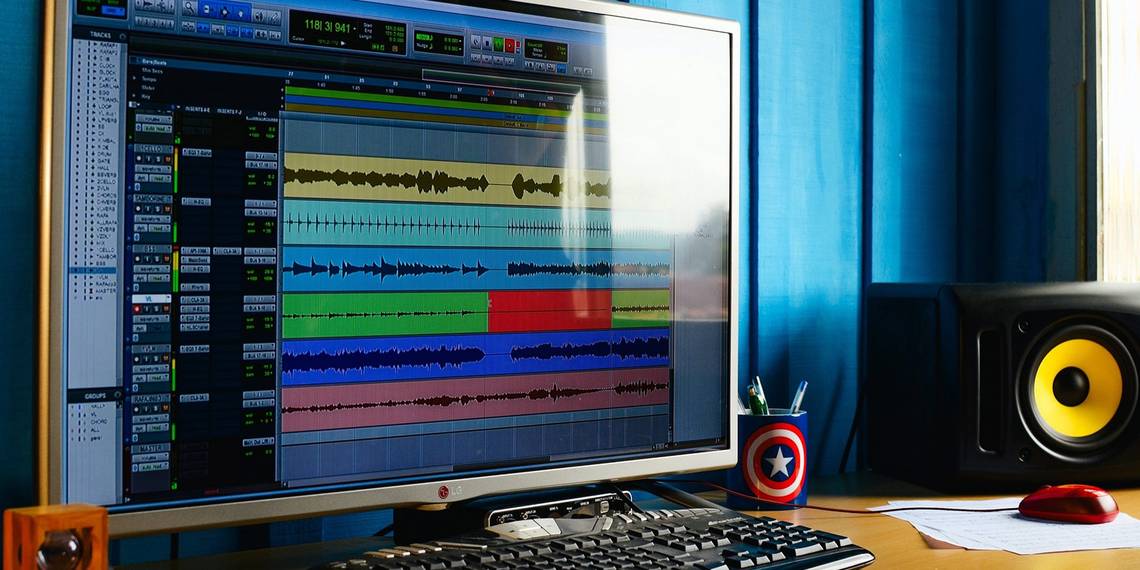
Most people don't want to figure out how to combine audio files, especially if that means learning something complicated. They'd prefer to find a great MP3 splitter or merger and save themselves the headache instead.
Even if you're not working in media, per se, there are a thousand different scenarios that might have you in the cockpit. When the need to combine MP3 files rears its ugly head, where do you turn?
You don't need advanced audio splitter software to splice audio files or to do other simple tasks like this. In this article, we're going to go through some of the best audio splitter software on the internet. Is there anything more annoying than being without the right tool for the job?
1. The Best Free Audio Editor: Audacity

Supported Formats: Any
Audacity is the go-to app if you're looking for full control over the process. With this audio merger and splicer, you can merge and split any bit of audio into as many pieces as you want, all for free.
What's nice is that you'll also have access to all of Audacity's other features, including audio filters and effects. These may come in handy for music files that need to be cleaned up or enhanced in some way.
That's far from all that you can do with Audacity. To learn more about what this incredible audio track splitter can do, check out these creative uses for Audacity.
Download: Audacity for Windows, Mac, and Linux (Free)
2. The Best Audio Merger Tool: MP3 Toolkit

Supported Formats: AAC, FLAC, MP3, MP4, OGG, WAV, WMA, and more
MP3 Toolkit is a collection of six separate audio manipulation tools that are all useful in different ways: Converter, Ripper, Tag Editor, Merger, Cutter, and Recorder. For this article, we're most interested in the Merger and Cutter.
The Merger lets you take multiple audio files, rearrange them in whatever order you want, then export them as a single combined audio file. The audio file splitter lets you take a single audio file, select a start and an end time, and then export that selection as a separate audio file.
You can download MP3 Toolkit for free, an Unregistered product download. The site is a bit vague on what a Registered product offers over an Unregistered install. All that we know is that these tools get the job done just fine.
Download: MP3 Toolkit for Windows (Free, $30)
3. The Best Audio Splitter Tool: mp3DirectCut

Supported Formats: AAC, MP3
mp3DirectCut is a nifty little audio editor that's lightweight and bare-bones. You can't do much with it, but it's very good at its one true purpose in life: basic audio editing operations, including cutting, copying, pasting, and recording audio.
What sets this MP3 merger software apart from most is the fact that it directly manipulates audio files without requiring you to decompress them first. Not only does this result in a faster workflow; it also preserves the original audio quality. The file doesn't need to be re-compressed when the time comes to export your project, cutting out the middleman.
Other notable features include ID3 tag editing, pause detection, batch file processing, auto-division of tracks by time value, and automatic filename and tag creation when splitting tracks. For a straightforward and no-nonsense app to combine audio files, mp3DirectCut is among our top picks.
Download: mp3DirectCut for Android | Windows (Free)
4. Another Audio Splitter Tool: Mp3Splt

Supported Formats: FLAC, MP3, OGG
If you can get past the old-school vibe that the site is serving, MP3Splt is another great option when audio quality is a factor of consideration.
First things first: make sure you download Mp3Splt-GTK rather than simply Mp3Splt. The latter is a command line tool that's a bit more painful to learn. The GTK version's graphical interface makes for a much smoother experience, especially for a beginner.
Like mp3DirectCut, Mp3Splt can work on an audio file without decompressing it first, resulting in a faster workflow and no impact on audio quality. This audio file splitter is much simpler, though. You just pick a start and end time, then export that selection as a separate audio file.
If you have an entire album saved as a single audio file, Mp3Splt can auto-split your media by using CUE files that mark where each track begins and ends. Auto-split using pause detection is available as well. Exported files can even have their ID3 tags edited.
Download: Mp3Splt for Windows and Mac (Free)
5. How to Combine MP3 Files Without Audio Merger Software: Command Line!
Supported Platforms: Windows, Mac, Linux
Supported Formats: Any
On Windows
One of the nifty things about Windows is that you can do a lot of cool stuff using the base command line utilities that come with the operating system. The copy command, for example, can actually merge MP3s into one.
Start by opening a Command Prompt window. You can do this by searching cmd in the Start Menu or by selecting Command Prompt in the Power Menu (keyboard shortcut Windows + X).
In the Command Prompt, navigate to the directory where your MP3s are stored. For this example, that would be the Downloads folder:
cd C:\Users\Joel\Downloads
Then, use the following command:
copy /b file1.mp3 + file2.mp3 newfile.mp3
This takes the contents of file1.mp3 and file2.mp3 and combines them into a third file called newfile.mp3. You can have as many source files as you want, as long as you separate them with a + sign, like so:
copy /b file1.mp3 + file2.mp3 + file3.mp3 + file4.mp3 newfile.mp3
The downside to this method is that it's a literal concatenation of files, so the ID3 tags for all source MP3s except the first will be lost somewhere in the middle of the resulting MP3.
On Linux and Mac
On Linux and Mac, you can use this command instead:
cat file1.mp3 file2.mp3 file3.mp3 > newfile.mp3
The Best App to Merge Two Songs Together
We have to say, there's a time and a place for all of these methods to merge MP3 files.
The best MP3 splitter isn't the most complicated or powerful app you can find; it's the one that gets the job done right, every single time. These are far from all of the apps to merge audio that you'll find online, but they are some of the best. Try one out, or download them all!