
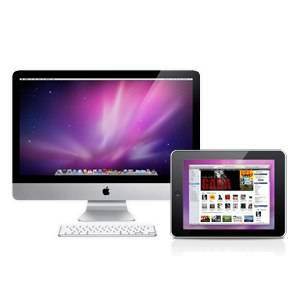
Many people separate the personal computer and the iPad into two different worlds - the PC is for work and the iPad is for fun. But I think both devices don't have to be on opposite sides. They can work together harmoniously. If you want to use your iPad alongside your PC, here are four ways to use the iPad to enhance the use of your personal computer.
There's An App For That
All the methods described below are possible because of the availability of supporting apps. You'll need two components to make the system work - the iOS app and the desktop app. All the desktop apps are available in both Windows and Mac versions, and all apps are free unless mentioned otherwise.
1. As A Second Display
What makes the iPad different from the personal computer is the size factor. Since the iPad is a big touchscreen display, why not use it to extend your personal computer's display? Air Display can help you to utilize the iPad to be a second monitor.
Even though Air Display's desktop app is free, the iOS app is not. The price tag is US$ 9.99, but I think it worth every penny. After installing both components, you can connect the two devices using WiFi and your iPad will be magically transformed into a second monitor.

You can use the second monitor to mirror the first, or as additional screen real estate. If you choose the second option, you can easily move any open window from your computer screen to the iPad screen by dragging and dropping.
2. As An External Drawing Board
Some digital graphic artists rely on their digital drawing pad to produce their work. If you are one of them, or if you plan to buy a digital drawing pad, you can try to use your iPad as a substitute. There are lots of great drawing apps for the iPad that you can choose, such as Brushes, Procreate, Sketchbook Express and Pro, Adobe Ideas, etc.
But if you want to use a collaborative drawing board, where several people can draw on the same digital board simultaneously, you can try WhiteBoard. The lite version is free, while the pro version is US$ 2.99.
3. As An External Trackpad
Why not use the iPad as an external tracking device to work with your computer? HippoRemote is one of the many apps that will allow you to do so. Other than transforming your iOS into a trackpad, the app can also mimic a full keyboard. The lite version of the app is free while the pro will set you back US$ 4.99.

If you are a Mac OS X user, you can use the app to do multi-touch gestures. You can also use it to remotely control your presentation or your computer media player.
4. As A Gate To Access A Remote Computer
This one might be the most obvious use of an iPad in its relationship with the personal computer. But I won't talk too much about this topic as there are already several discussions about it, including The 7 Best Free Remote Control Apps for the iPhone, The Best Free Remote Desktop Apps for Your iPad, and Access Your Computer From Anywhere on Your iPad.
Creating A Wireless Network
All the apps mentioned above require both devices - the personal computer and the iPad - to be connected to the same wireless network. But if your wireless arrangement doesn't work, you could try to create a computer-to-computer network from your computer's wireless settings and preferences. Then you can set your iPad to connect to that direct connection.

In my experiment, I found that all the apps worked better using a direct "computer - iPad" connection rather than using a home network.
What do you think about using the iPad to enhance the use of a personal computer? Do you have other usage ideas? Please share them using the comments below. And don't forget to check out our collection of the best iPad apps.
Image credit: Avatron.com