
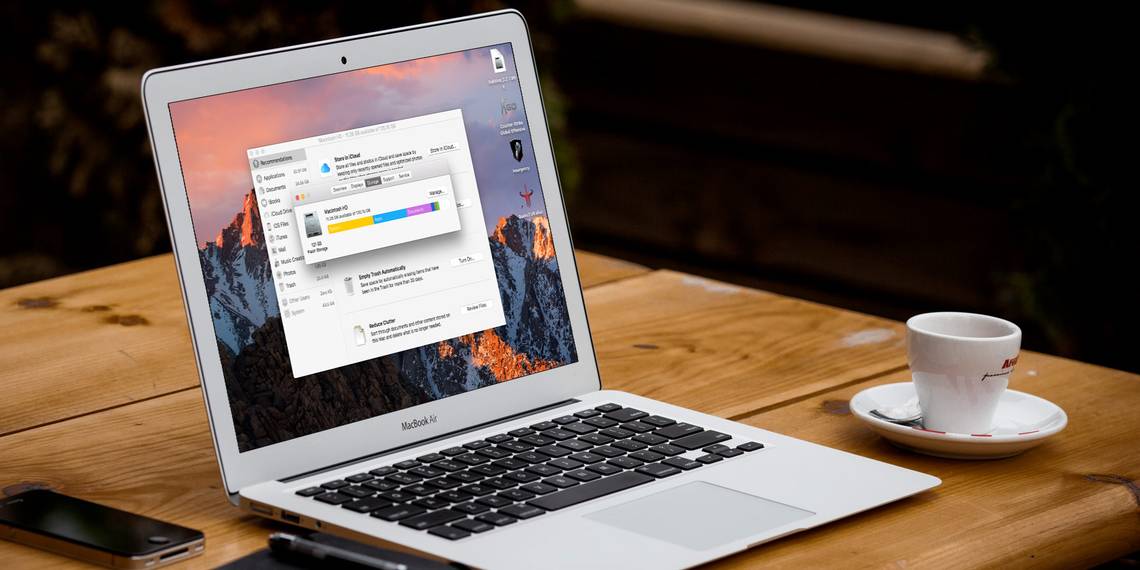
If your Mac is running low on disk space or you've seen that scary "startup disk is full" message, you know it can be frustrating to free up storage. To deal with this problem, many people resort to external drives and juggle their files continuously between the disks.
While you can manually track available storage space, we'll show you how to check disk space on a Mac using some disk analyzer apps. They offer unique visual experiences and let you take actionable steps to free up valuable disk space.
How to Check Hard Drive Space on Mac
There are multiple ways to check the storage space on your Mac. Choose Apple menu > About This Mac and click Storage for the most basic one. Hover your pointer over the colored blocks to see what kind of content is using disk space.

For more info, open Disk Utility by searching for it with Spotlight (Cmd + Space). Select your startup volume from the left panel to check the amount of used space in the volume.
Then, click the Info button in the toolbar to show more details like Purgeable space and Available space (Purgeable + Free).

For another method, right-click the Macintosh HD disk icon on the left sidebar in Finder and select Get Info. You'll get details on Used versus Available capacity, along with the space macOS considers purgeable.

What Is "Other" in Mac Storage?
On some Macs, you'll notice that the Other storage category takes up a lot of disk space. This includes macOS system files, user Library folders, cache folders, and more. The majority of these folders are not normally visible.
If you mess with these directories, it could result in an unstable system, loss of data, or even prevent your Mac from booting up. Find out more about macOS folders you shouldn't touch and how to handle them if they use a lot of space.
Why You Should Use a Mac Disk Space Analyzer
Why would you use a third-party app when there are multiple built-in ways to check the disk space on your Mac? Here are some reasons:
- Finder might incorrectly interpret hard links as another copy of the file. Although hard links take no actual disk space, Finder counts them (at least) twice as distinct files, resulting in inaccurate estimation of folder sizes.
- Your Mac's file system, APFS, uses space-efficient clones while copying a file within the same volume. Instead of duplicating the data, it updates the metadata, and the on-disk data gets shared. Finder does not understand this mechanism and wrongly estimates free and used disk space.
- The APFS snapshot feature works differently. When Time Machine creates local snapshots, the file system is aware of the changes. But neither Finder or About This Mac shows the space taken by snapshots. As a result, it may show the System category taking a lot of space.
- In APFS, every disk is a container that can hold multiple volumes and shares the same pool of free space. If your startup disk consists of at least four separate volumes, you might notice a reduction in space available to Macintosh HD.
Now that you know why we recommend you use third-party apps, let's explore the best Mac disk space analyzers to inspect and analyze disk space.
1. GrandPerspective

GrandPerspective is a utility app that uses a treemap structure for visualizing disk space. Upon launch, it asks you to select a folder or drive you want to analyze. A view window shows the contents in colorful rectangle blocks.
Hover your mouse pointer over a block to display the file name and size at the bottom of the view window. You can move the selection from a file to one of the folders and vice-versa by changing the focus. Press Cmd + [ and Cmd + ] to move up and down in the file hierarchy.
Click a block to lock the selection. Then, you can take action directly on that item. Press Space to take a quick look and click the Reveal button to show the selected file/folder in Finder.
What Makes GrandPerspective Unique?
- You can change the sorting criteria by creation date, extension, file type, or folder and even choose a different color palette.
- Select from the list of recently scanned folders to save time. Or select Load Scan Data to create a new view with older scanned data.
- Create new filters for refining the view and perform filter tests to mix them in different ways. You can choose from audio, hard-links, images, app package contents, and more.
- The app lets you rescan a folder with different settings. Afterward, open those results in a separate window to compare with the last results.
Download: GrandPerspective (Free)
2. OmniDiskSweeper

OmniDiskSweeper is another disk space analyzer for Mac. Upon launch, select a drive from the list and click Sweep Selected Drive. A new window opens with folders and files displayed in a column view. Once the scanning process completes, click on a folder and navigate to any file that takes up significant disk space.
The app uses different colors to group files by size and to show the status of an item. File sizes marked in green are the smallest files. As the size gets larger, this changes to dark green, dark purple, and light purple for huge files. Double-click on an item to open it in Finder.
What Does OmniDiskSweeper Offer?
- It lets you sweep external and disk drives located on your network. If you share a folder located on a PC, the app can even scan that folder.
- The bottom window provides you detailed information of a file, its size, and packages it belongs to in the file system. You should focus on files that are not part of packages.
Download: OmniDiskSweeper (Free)
3. Disk Inventory X

Disk Inventory X is a utility app that gives you an overview of the space taken by different file types. Open the File menu and select any drive or a folder you would like to analyze. Once the scanning process finishes, the app creates a graphical treemap for visualizing storage space.
The left panel helps you sort the file list based on the colors associated with a particular file type, size, number of files, and file format. Click on any element in the graph to help you identify and locate the biggest files.
Unique Features of Disk Inventory X:
- Any selection you make in the treemap graph gets synchronized with the finder-like view. This helps you find the major culprits, no matter where they are on the disk.
- The app sorts file types in descending order. Each file type has a color used in the treemap graph and throughout all open folders.
- You can view package contents, zoom into folders, and hide free space to analyze disk space in different ways.
Download: Disk Inventory X (Free)
4. DaisyDisk

DaisyDisk is a beautifully designed disk analyzer that uses a sunburst map to show you a disk overview. Upon launch, it displays all mounted volumes with different color styles. Green means that at least half of your disk is empty, while red denotes that it's time to take action.
Click the Scan button, and within a few seconds, you'll see the map with a brief overview on the sidebar. Place your mouse over any segment to see its contents on the sidebar. When you want to navigate to the parent folder, click in the center of the disk map.
Key Features of DaisyDisk
- The sunburst map helps you separate the huge files from smaller ones. Drill down and find out which items are consuming the most disk space.
- If you scan the disk as an administrator, it can reveal more data about files hidden on other volumes, space taken by local snapshots, and details on purgeable space.
- You can preview any file from the sidebar, send them to a collector panel, then delete them at your convenience.
Download: DaisyDisk ($9.99, free trial available)
5. NCDU

NCDU is a command line disk analyzer with a ncurses interface. It's based on the du command, but it's much faster and easy to use on your Mac and remote servers. To get started, you'll need to install the app through Homebrew. To do this, see how to install Mac apps using Homebrew.
Once installed, open Terminal and type in ncdu / to start scanning your drive. Use the arrow keys to navigate across items. Then, press i to view the details of the selected item.
Unique Features of NCDU
- You can use different options to enhance the disk-related information. Navigate to the NCDU man page for more details.
- It's easy to export all the information to an output file. You can then use file comparison apps to better analyze your disk usage.
Download: NCDU (Free)
Stay on Top of Your Mac's Free Space
Getting accurate details about free and used space on your Macis tricky. While there are many built-in techniques, most of them are unreliable for detailed use. Use Disk Utility and these apps to inspect and analyze your storage space in detail.
For more help, make sure to check our big list of tips for creating free space on your Mac.